0.3.20
- 26 languages
- Choose a theme
- A quick explanation
- Connection notifications
- Reconnect automatically

For work, conversations and downtime
Add the link from your provider and select Connect. TunLeo saves the connection, so you will not need to enter the details again next time.
You need your own access key or subscription. TunLeo does not include servers.
26 languages · Windows and Android · No TunLeo account needed
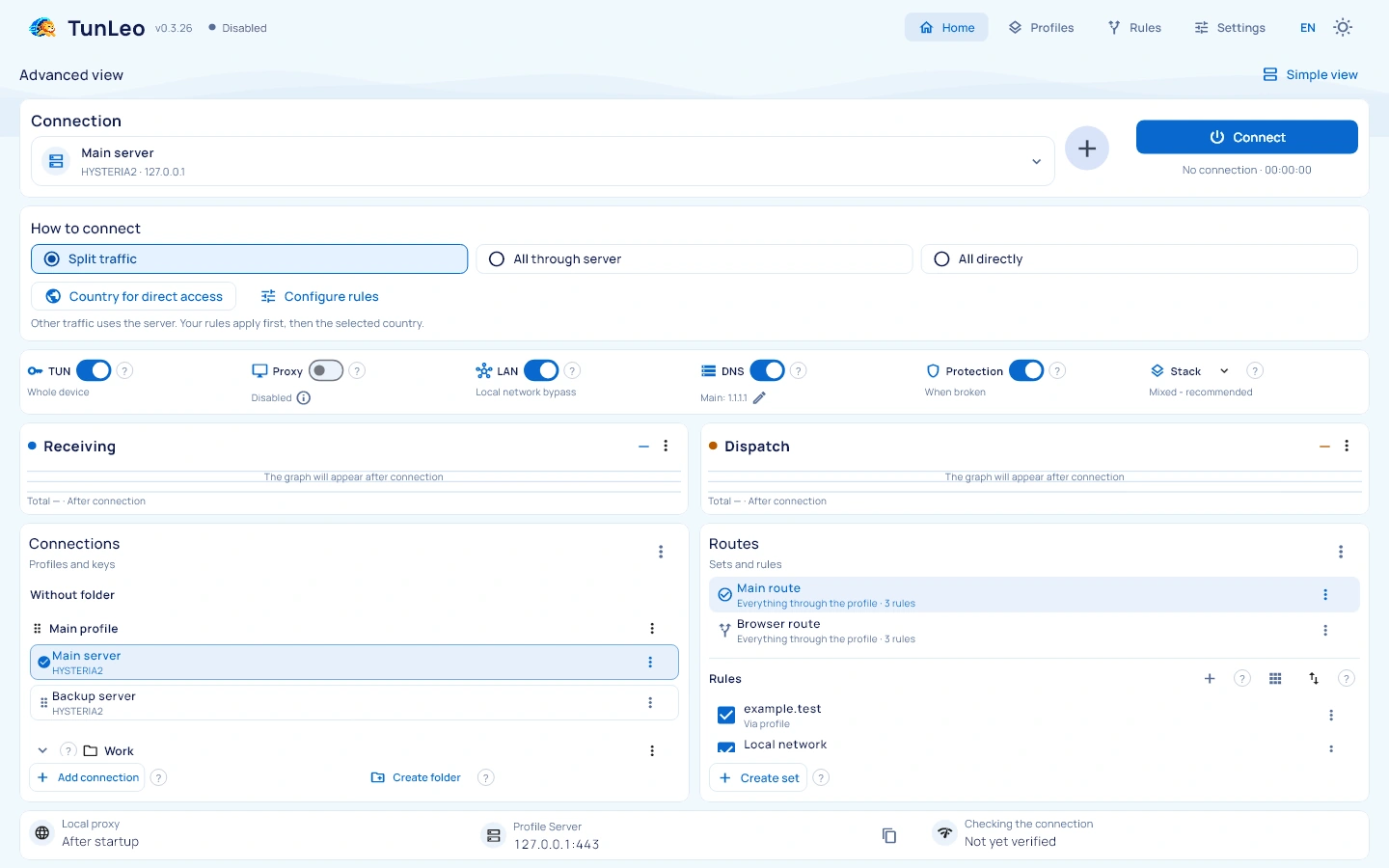
Have the connection link or settings file from your provider or administrator ready.
Download TunLeo for Windows or Android. You do not need to create an account.
Paste the link you received or choose a settings file. Check the connections found and add them.
Choose a connection on the home screen. You can also see its status, connection time and traffic there.
Start with a connection. Adjust the rest when you need it.
Keep work and personal connections separate. Give profiles clear names, group them into folders and choose the one you need before connecting.
What you need. A key, subscription link or configuration file from your provider. TunLeo does not supply server access.
How to add it. Paste a link, open a file or scan a QR code. A subscription can contain several servers. A profile name helps you recognise the group.
Next steps. Select Continue, review the detected connections and select Add. Choose a key on the main screen and connect. Importing alone does not start the connection.
When it helps. Group many profiles into personal and work folders. A folder is optional when you have only one profile.
How to use it. Create a folder and move an entire profile into it. Its keys stay together. This changes the list order rather than connection settings.
Next steps. Save the name or finish the move. Reconnection is unnecessary. Only empty folders can be deleted.
When it helps. Find a working key or investigate a site that fails after connecting.
Results. A key check tests server availability. An active-connection check tests network access through that connection. Lower delay means a faster response, not a guaranteed download speed.
Next steps. On failure, read the reason, try another key or check your normal internet connection. On success, open the particular site you need.
Export. Saves profiles, keys, rules and settings in a file protected by your password. Useful before moving to another device or removing data.
Restore. Replaces current saved data with the backup contents. Export another backup first if you also need the current data.
Next steps. Keep the exported file and password separately. To restore, select the file, enter its password and review the confirmation. Check the selected key and route afterward. The connection restarts if needed.
For example, send a work service through your chosen server and reach your home printer directly. Save rules so you do not have to change connections manually.
Meaning. A rule set decides which sites and apps use the selected server and which use your normal internet connection.
Example. Send a work service through the profile and keep your printer on the local network. Rules run from top to bottom; the first matching rule applies.
Next steps. Choose a rule set and its general mode. An active connection applies the change automatically. Wait for reconnection and check your site.
When it helps. A site takes the wrong path or several rules might match it.
How to use it. Enter a domain or IP address and optionally an app. The check shows the first matching rule and its path without opening the site.
Next steps. If the path is wrong, change the rule order or condition. Then connect and open the site. This check alone does not test internet access.
Purpose. DNS converts a site name such as example.com into its network address so the device can find it.
Enabled. Uses the DNS servers saved in TunLeo. Useful when your normal provider DNS cannot find a site. These servers must be reachable from your network.
Disabled. Uses the device DNS. Useful when sites stopped resolving after a DNS change. Saved addresses remain available. Internet access is still enabled.
Next steps. The switch saves immediately. Open the DNS editor to save custom addresses. Wait for automatic reconnection and try the site again.
Enabled. Useful when losing access is preferable to an ordinary direct connection after a server failure. TunLeo enables TUN and network protection. Some apps may have no internet until recovery.
Disabled. TunLeo does not enable this extra blocking. Useful when direct access is acceptable and internet availability matters more. Your routing rules remain as configured.
Next steps. The switch saves immediately. Wait for reconnection. For Android blocking after the app stops, also enable permanent connection and blocking without it in the system settings for TunLeo. Those system options can leave the device offline after a manual stop.
Watch traffic, receive connection notifications and save backups. Choose a light, dark or system theme.
Enabled. After detecting lost access, TunLeo waits for the configured delay and retries with the same key and rules. Useful when switching between Wi-Fi and mobile data.
Disabled. Reconnect manually after a failure. Useful when you want to decide when another attempt starts. Changing this setting alone does not stop the current connection.
Next steps. The switch saves immediately. Set the delay below. A manual stop cancels retries and prevents them from starting the connection again.
Enabled. Shows a message when the connection is lost or restored. Useful when the TunLeo window is hidden. Repeated errors are grouped.
Disabled. These messages are hidden. The connection and automatic retries follow their separate settings. The Android running-service notification is managed separately.
Next steps. The switch saves immediately. Allow notifications if the device asks, then use the test notification button. If nothing appears, open the system notification settings for TunLeo.
Meaning. Download is data arriving at the device; upload is data leaving it. The graph shows current speed and the total shows data already transferred.
Reading it. Zero speed is normal when nothing is loading. The timer shows connection duration. A dash means no measurement is available yet.
Next steps. Open a site or download a file and watch the graph. Speed also depends on that site and your network, so the graph alone cannot identify the best server.
Manual selection. Choose a language you understand. It is saved for future launches.
Automatic. Follows the device or browser language. An unsupported language falls back to English.
Next steps. Nothing else: labels change immediately. The connection stays active. Your profile names and key contents remain unchanged.
No. Install TunLeo and add a connection. Profiles and settings are kept in an encrypted file on your device.
Version 0.3.20 · Beta release
Windows x64 · ZIP archive
Android ARM64 · APK
TunLeo uses your existing server access. Get an access key or subscription from your chosen service or administrator.
From the service providing your access, or from your administrator. It usually comes as a link or settings file. TunLeo uses that access but does not issue its own keys or sell subscriptions.
TunLeo supports VLESS, VMess, Trojan, Shadowsocks and Hysteria 2, along with common Mihomo and Xray configurations. Compatibility depends on the key settings. You can review the import before adding it.
No. Install TunLeo and add a connection. Profiles and settings are kept in an encrypted file on your device.
Windows and Android builds are available now. Versions for iPhone and macOS have not been released.